> For the complete documentation index, see [llms.txt](https://docs.opencityitalia.it/llms.txt). Markdown versions of documentation pages are available by appending `.md` to page URLs; this page is available as [Markdown](https://docs.opencityitalia.it/sito-web/moduli-integrativi-della-piattaforma/configurare-i-feed-rss/creare-un-feed-rss.md).

# Creare un feed RSS

Un redattore può creare nuovi feed RSS.

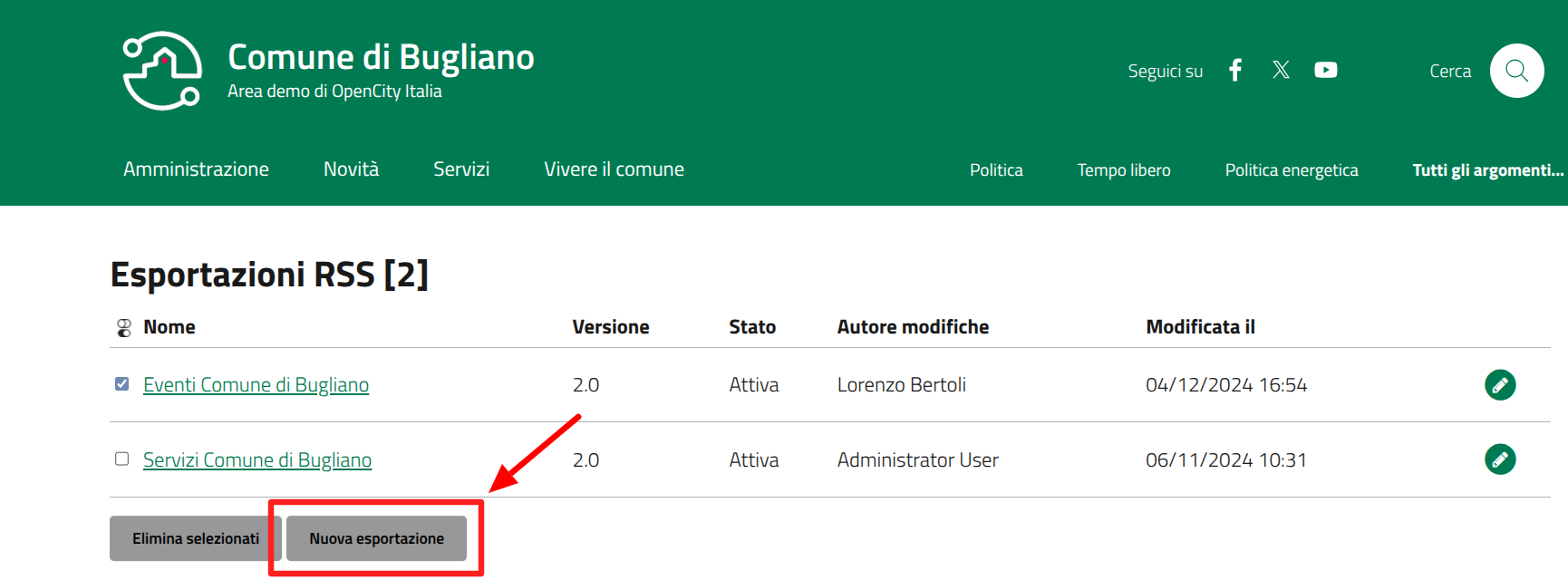
Nella [sezione dedicata ai feed RSS](https://docs.opencityitalia.it/sito-web/moduli-integrativi-della-piattaforma/configurare-i-feed-rss.md), clicca sulla voce "Nuova esportazione"

<figure><img src="https://3823931934-files.gitbook.io/~/files/v0/b/gitbook-x-prod.appspot.com/o/spaces%2FfYDGLbEkTaK5gywjDOEN%2Fuploads%2Fgit-blob-aa858ebbe60a612d038b56c6109206a1cc7cb0cd%2Fimage%20(142).png?alt=media" alt=""><figcaption></figcaption></figure>

## Indica nome e URL di accesso

Specifica il nome del feed che stai creando.

<figure><img src="https://3823931934-files.gitbook.io/~/files/v0/b/gitbook-x-prod.appspot.com/o/spaces%2FfYDGLbEkTaK5gywjDOEN%2Fuploads%2Fgit-blob-2070c9f095ca37d5c4af56b926adec64f3d97147%2Fimage%20(837).png?alt=media" alt=""><figcaption></figcaption></figure>

Successivamente, imposta l'URL di accesso da cui l'esportazione RSS sarà disponibile.

<figure><img src="https://3823931934-files.gitbook.io/~/files/v0/b/gitbook-x-prod.appspot.com/o/spaces%2FfYDGLbEkTaK5gywjDOEN%2Fuploads%2Fgit-blob-c90633016bd92c23bf518c87036cd5c11fe9d7fa%2Fimage%20(838).png?alt=media" alt=""><figcaption></figcaption></figure>

## Configura il percorso

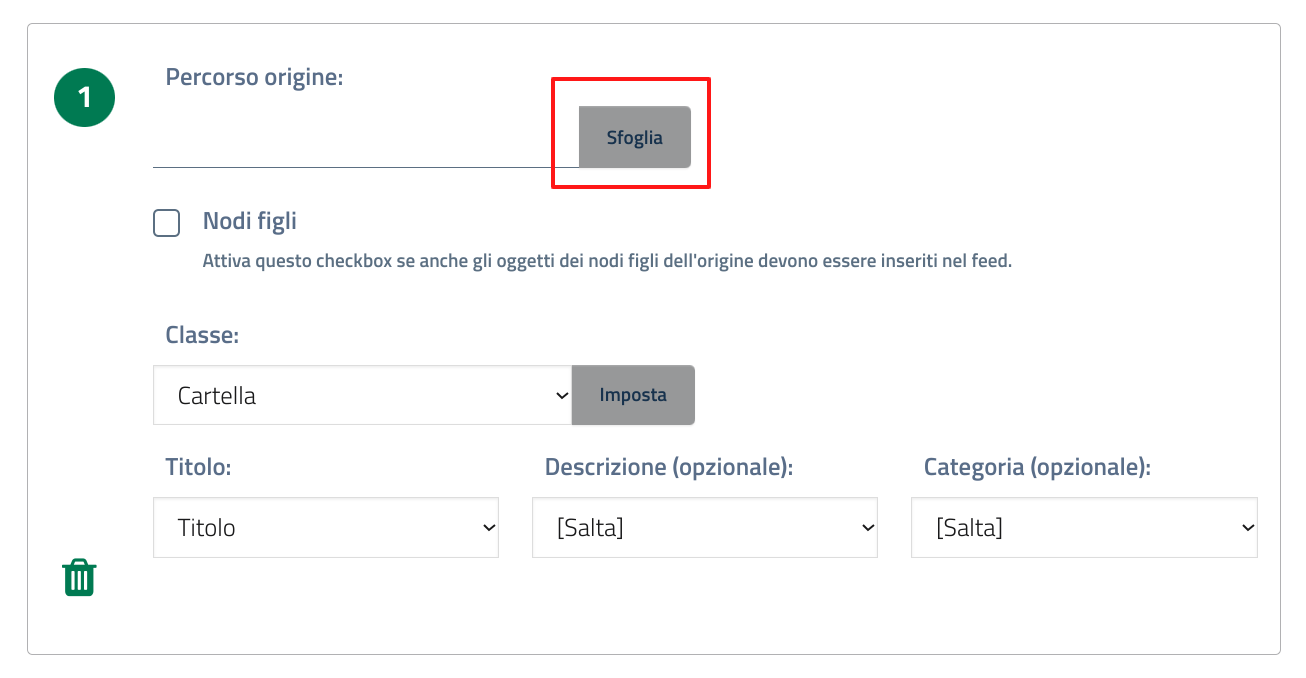
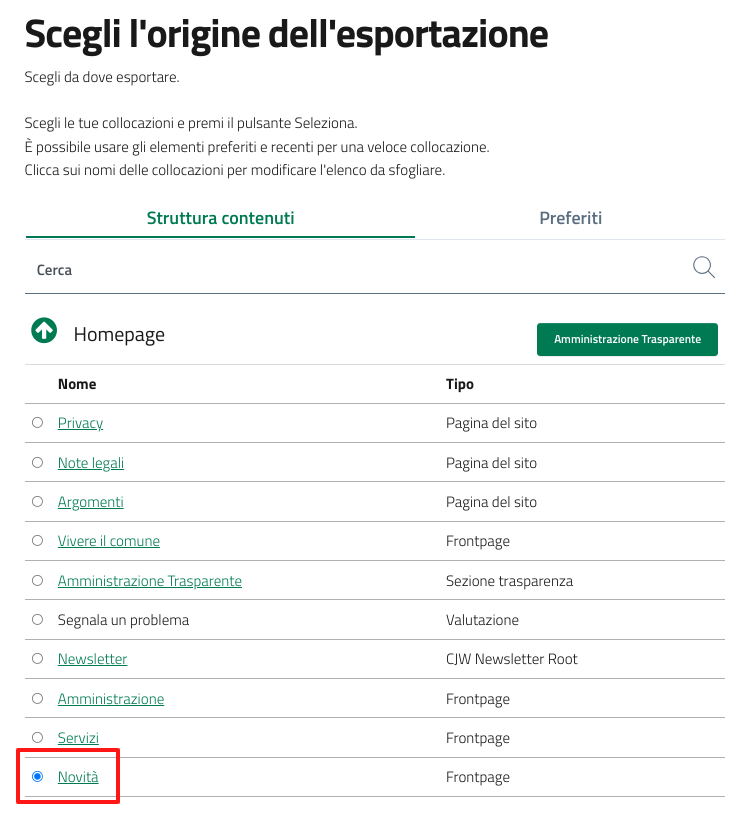
Clicca su "Sfoglia" e indica la pagina del sito da cui vuoi che vengano recuperati i contenuti.

<div data-full-width="true"><figure><img src="https://3823931934-files.gitbook.io/~/files/v0/b/gitbook-x-prod.appspot.com/o/spaces%2FfYDGLbEkTaK5gywjDOEN%2Fuploads%2Fgit-blob-576167be0a7418dd8b45a3ac23ff77d5ee20b4dc%2Fimage%20(839).png?alt=media" alt=""><figcaption></figcaption></figure> <figure><img src="https://3823931934-files.gitbook.io/~/files/v0/b/gitbook-x-prod.appspot.com/o/spaces%2FfYDGLbEkTaK5gywjDOEN%2Fuploads%2Fgit-blob-901b5366ac596c1da8346d7366a714ad0d4f3e47%2FScreenshot%20(1)%20(4).png?alt=media" alt=""><figcaption></figcaption></figure></div>

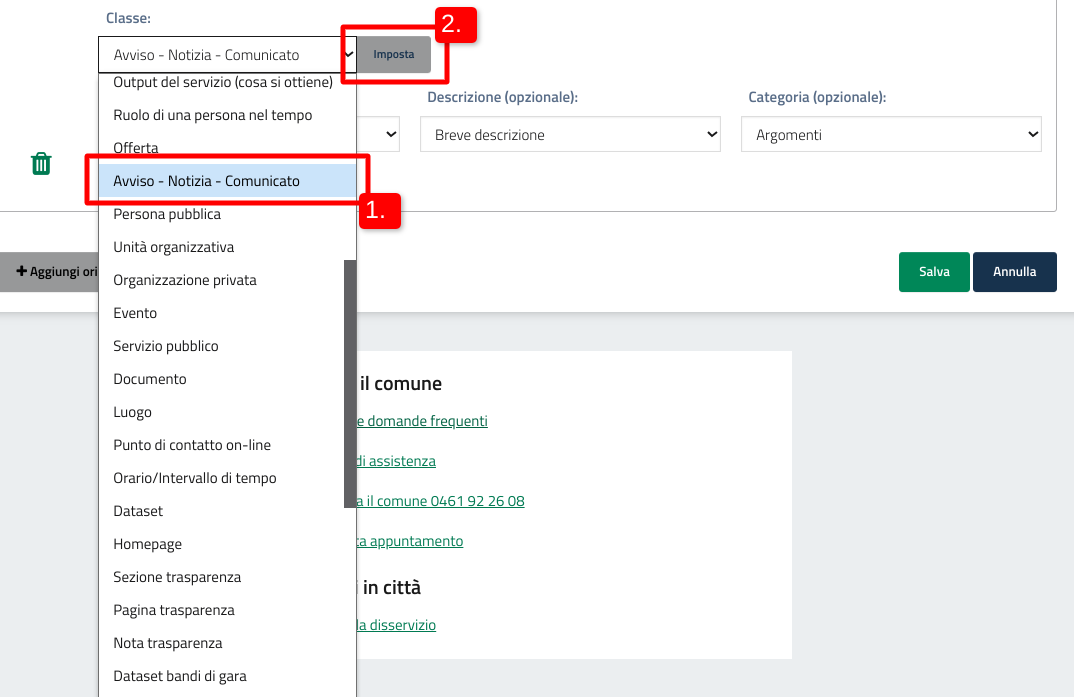
Successivamente, seleziona dal menù a tendina la classe di contenuto della pagina che hai indicato (1) e clicca su "Imposta" (2).

<figure><img src="https://3823931934-files.gitbook.io/~/files/v0/b/gitbook-x-prod.appspot.com/o/spaces%2FfYDGLbEkTaK5gywjDOEN%2Fuploads%2Fgit-blob-085f0958ffc2489f1945f79f003ddd0865b05c75%2Fimage%20(840).png?alt=media" alt=""><figcaption></figcaption></figure>

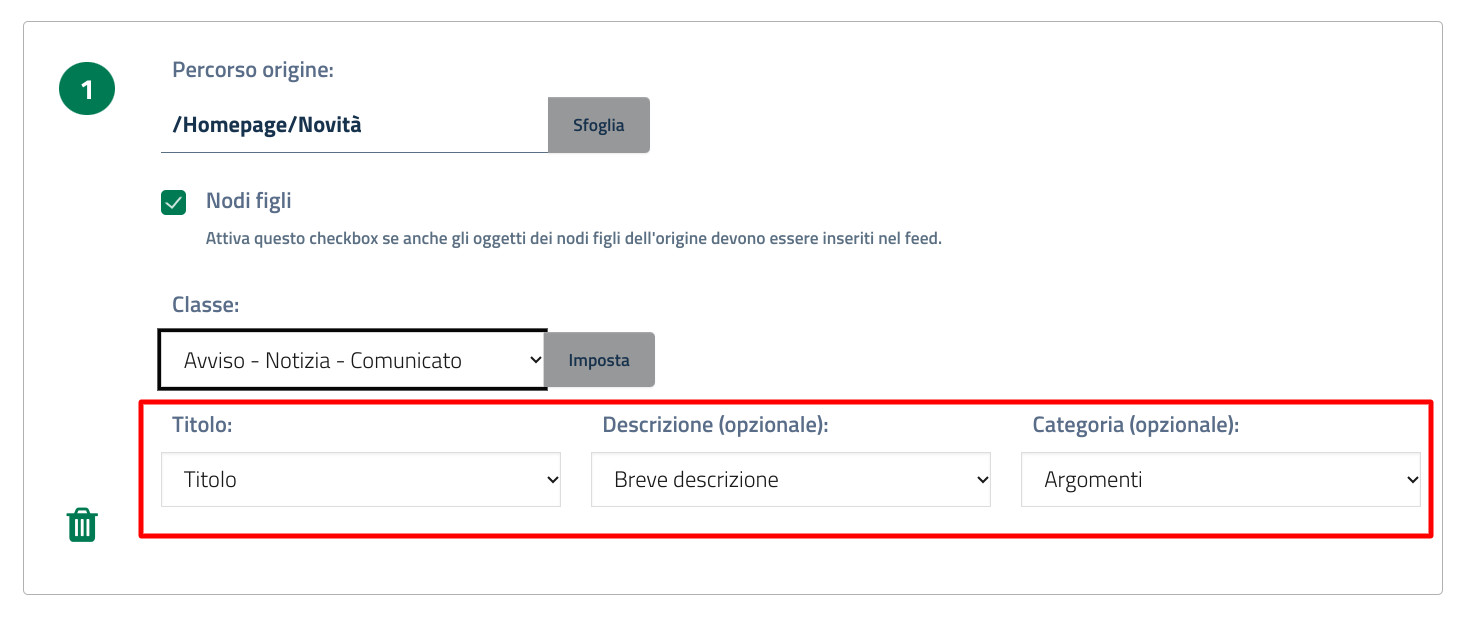
Puoi configurare ulteriormente il feed indicando dei campi aggiuntivi per la classe di contenuto che hai indicato.

<figure><img src="https://3823931934-files.gitbook.io/~/files/v0/b/gitbook-x-prod.appspot.com/o/spaces%2FfYDGLbEkTaK5gywjDOEN%2Fuploads%2Fgit-blob-dbbc5bffa9245ea72b6e66f79c4a8c563cde0c57%2Fimage%20(841).png?alt=media" alt=""><figcaption></figcaption></figure>

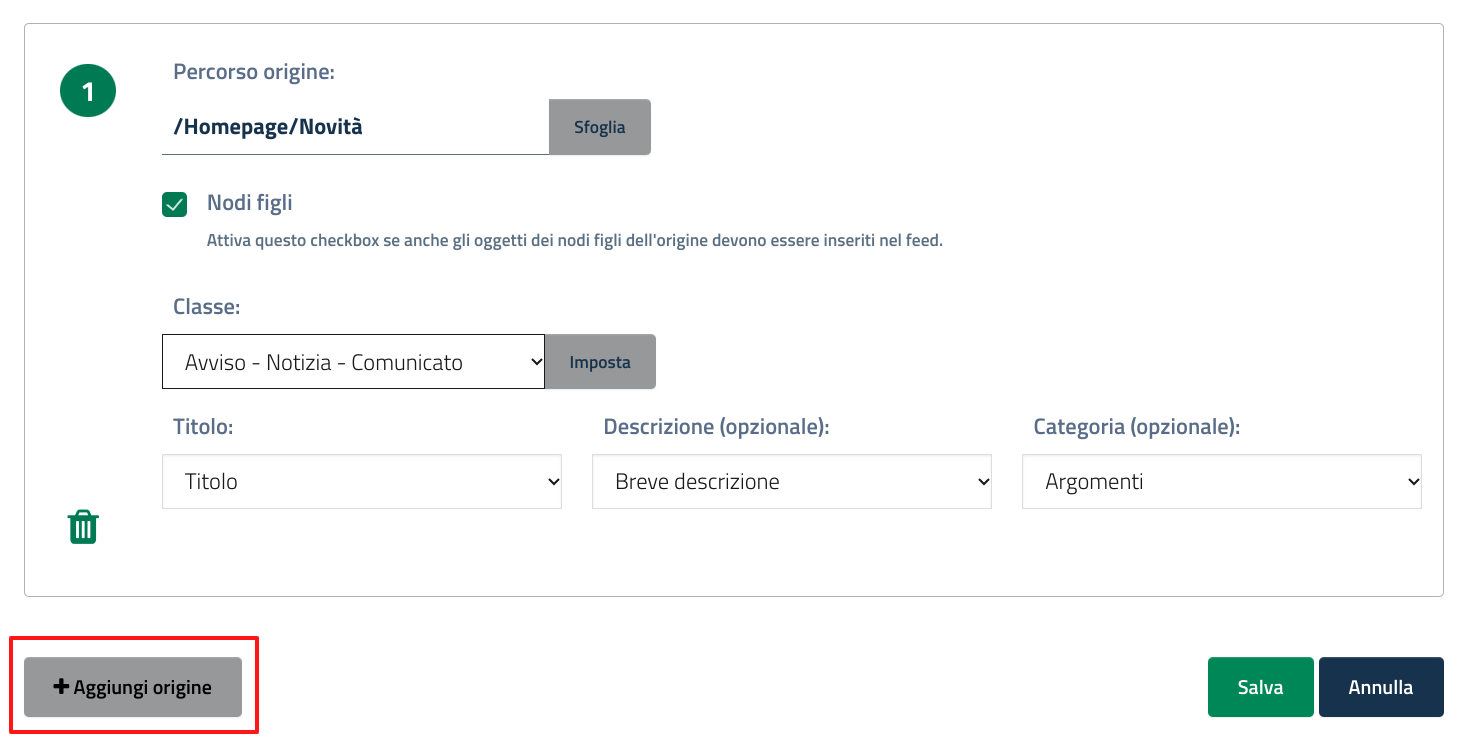
Se vuoi chiamare altri contenuti tramite feed, clicca su "Aggiungi origine" per inserire un nuovo percorso.

<figure><img src="https://3823931934-files.gitbook.io/~/files/v0/b/gitbook-x-prod.appspot.com/o/spaces%2FfYDGLbEkTaK5gywjDOEN%2Fuploads%2Fgit-blob-e7cf8f6583be25fba1a0ec6446e2008dd0653d83%2Fimage%20(842).png?alt=media" alt=""><figcaption></figcaption></figure>

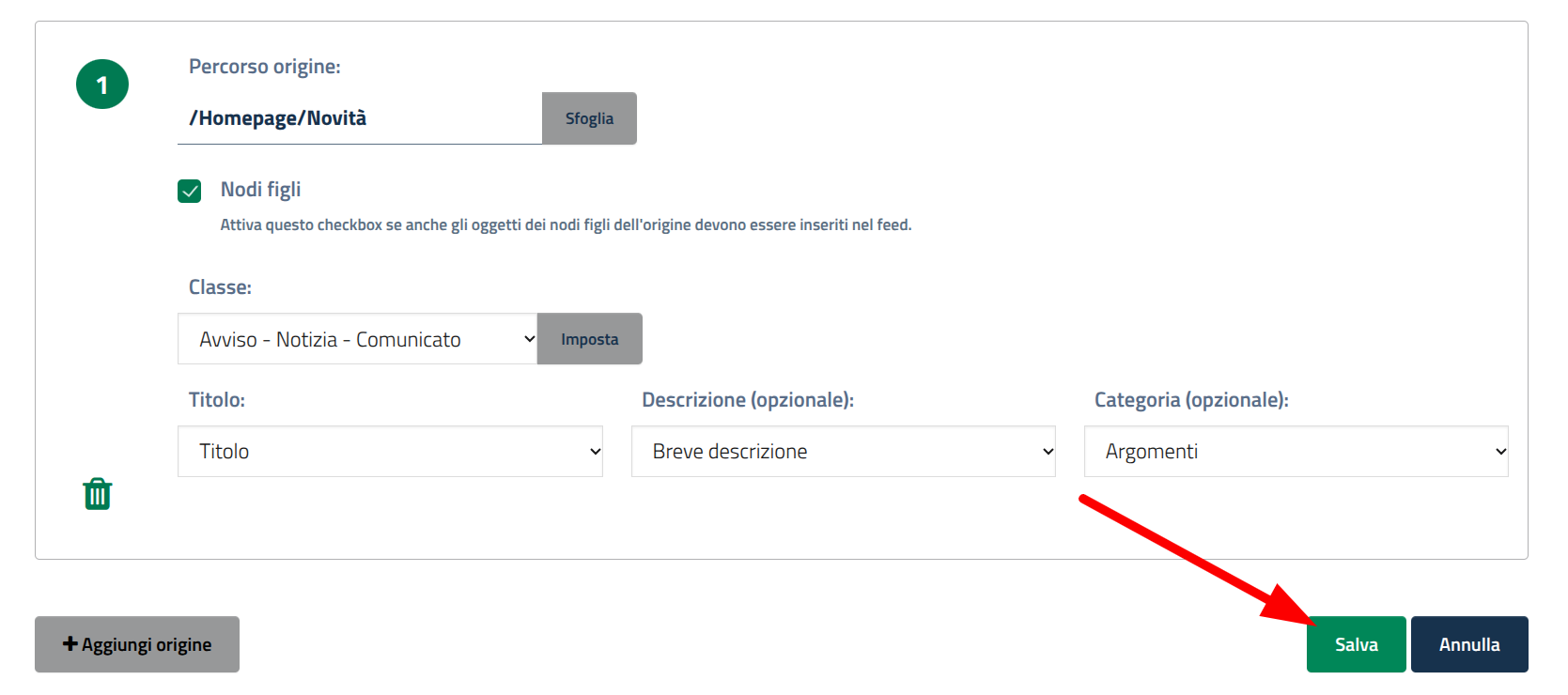
Una volta configurato il feed, clicca su "Salva".

<figure><img src="https://3823931934-files.gitbook.io/~/files/v0/b/gitbook-x-prod.appspot.com/o/spaces%2FfYDGLbEkTaK5gywjDOEN%2Fuploads%2Fgit-blob-8d3bf06f9b3cb15572357c44649e14bea717af32%2Fimage%20(143).png?alt=media" alt=""><figcaption></figcaption></figure>

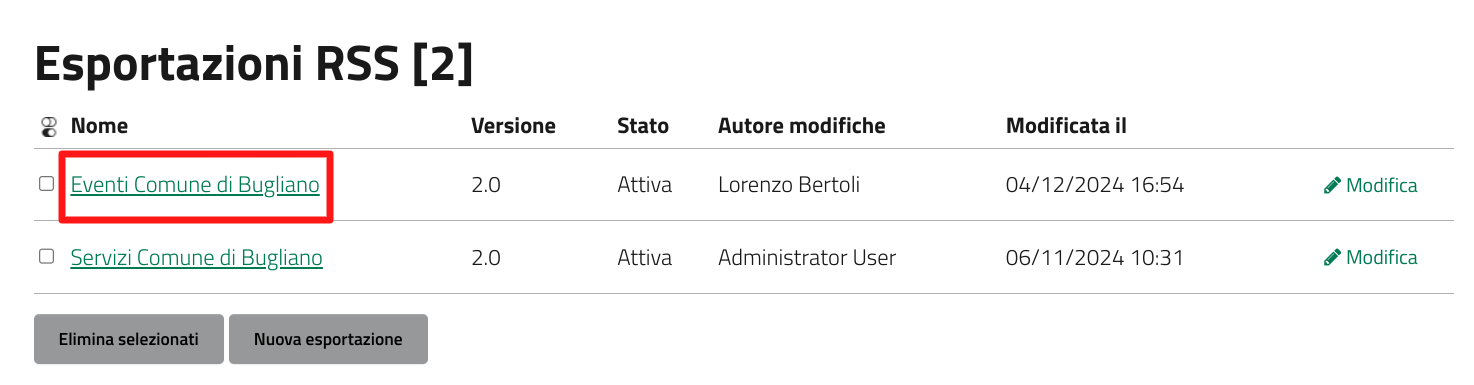
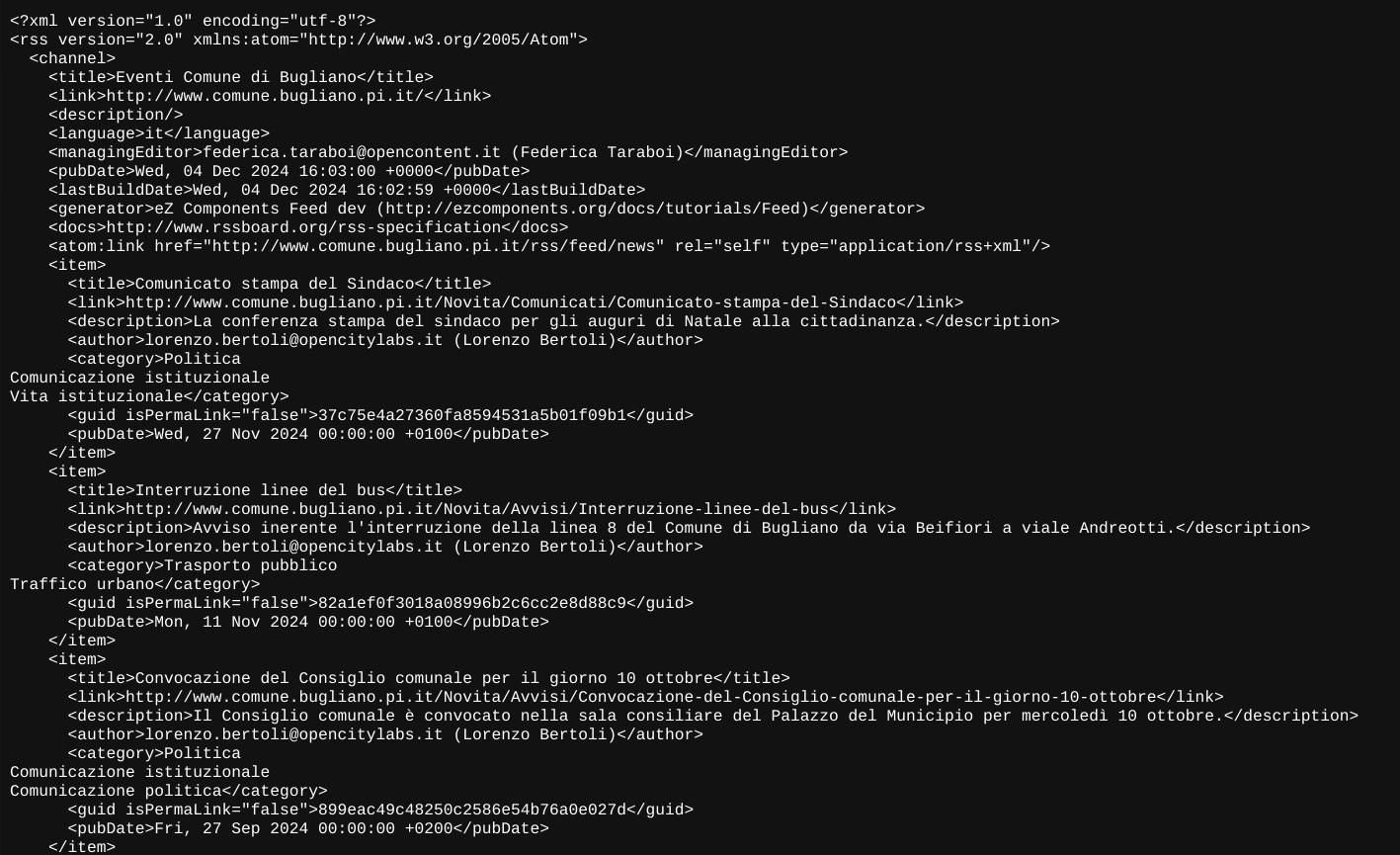
L'URL dell'esportazione sarà disponibile nella sezione dedicata ai feed e raggiungibile cliccando sul nome.

<div data-full-width="true"><figure><img src="https://3823931934-files.gitbook.io/~/files/v0/b/gitbook-x-prod.appspot.com/o/spaces%2FfYDGLbEkTaK5gywjDOEN%2Fuploads%2Fgit-blob-90b326254f57cdabb4e1cbffd10b52fa22bd0708%2Fimage%20(843).png?alt=media" alt=""><figcaption></figcaption></figure> <figure><img src="https://3823931934-files.gitbook.io/~/files/v0/b/gitbook-x-prod.appspot.com/o/spaces%2FfYDGLbEkTaK5gywjDOEN%2Fuploads%2Fgit-blob-5d9ad2c0f8c64e07efc75dcc58d5a9e1437016fc%2FScreenshot%202024-12-04%2017.03.08.png?alt=media" alt=""><figcaption></figcaption></figure></div>


---

# Agent Instructions
This documentation is published with GitBook. GitBook is the documentation platform designed so that both humans and AI agents can read, navigate, and reason over technical content effectively. Learn more at gitbook.com.

## Querying This Documentation
If you need additional information that is not directly available in this page, you can query the documentation by asking a question.

Perform an HTTP GET request on the following URL with the `ask` and `goal` query parameters:

```
GET https://docs.opencityitalia.it/sito-web/moduli-integrativi-della-piattaforma/configurare-i-feed-rss/creare-un-feed-rss.md?ask=<question>&goal=<user_goal>
```

`ask` is the immediate question: it should be specific, self-contained, and written in natural language.
`goal` is what the user is ultimately trying to achieve, the reason they need the answer. Sharing it helps GitBook give you a better, more relevant answer. A goal is most helpful when it describes the outcome the user wants rather than restating the question. For example, with `ask=how do I create an API token`, a goal like `automate deployments from our CI pipeline` lets GitBook tailor the answer to that use case.

The response will contain a direct answer to the question and relevant excerpts and sources from the documentation.

Use this mechanism when the answer is not explicitly present in the current page, you need clarification or additional context, or you want to retrieve related documentation sections.